Practical Basketball FPS and Competitive Settings
Maximize frame rate, disable distracting landing FX, and tune Roblox graphics so hold-E timing stays honest in stress tests.
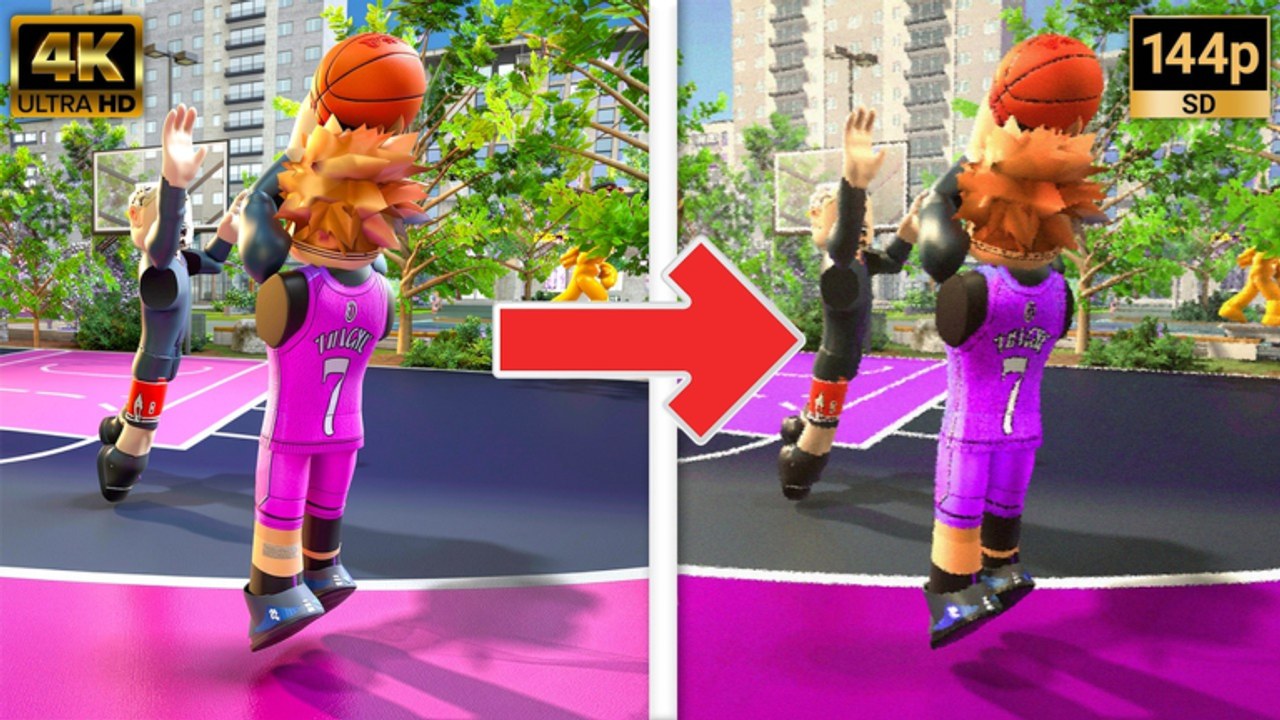
Practical Basketball is a timing game built on Practical’s Physics V2. When your client drops frames at the release peak of hold E, the shot feels late even if your input was correct. Competitive players treat FPS and in-game settings as seriously as attributes — especially during Stress Test 3 (ST3) when park lobbies mix iso creators, Diesel anchors, and Knockdown spacers who all depend on readable feedback.
This page covers Roblox graphics caps, Practical Basketball option toggles, and how settings interact with Camera Settings and How to Green timing. Mobile and console players should cross-read Mobile Controls and Console Controls because platform limits differ.
Why FPS matters for shooting and dribbling
Hold-release shooting on PC (hold E, tap E pump fake) maps input to animation frames. A single stutter can shift perceived timing enough to miss open catch-and-shoot threes. The same applies to:
- Dribble chains — Z/C/X/V combos from How to Dribble break when inputs clip during frame drops
- Driving dunks — Shift + Space approach angles need smooth camera tracking
- On-ball defense — lateral cuts from How to Defend feel sluggish when FPS tanks
Stress-test windows are short. Stabilize performance before you rebuild attributes.
Roblox graphics: competitive baseline (PC)
Roblox exposes graphics quality in the in-game settings menu (Esc → Settings → Graphics). Community ST3 testers often prioritize stable frame rate over max fidelity:
| Setting | Competitive direction | Why |
|---|---|---|
| Graphics mode | Manual, lowered steps | Reduces GPU spikes in crowded parks |
| Texture quality | Medium or lower | Frees headroom for consistent frames |
| Effects / particles | Reduced when available | Less screen clutter on contests |
| Fullscreen vs windowed | Fullscreen often steadier | Test both on your monitor |
| V-Sync | Personal preference | Some players disable for lower input lag; watch tearing |
Close background apps — browsers with video, overlays, and capture tools steal CPU cycles Roblox needs during ST3 openings. When servers show [BE BACK SOON!] between pushes, use downtime to tune once instead of changing sliders every queue.
Practical Basketball in-game toggles
Inside the experience settings menu (verify labels each ST3 build — names shift in early access):
Perfect Jumpshot Landings = Never
This is the most repeated community setting for competitive play. Landing animations after greens can block rim alignment and contest hand height on the follow-through. ISO players on 1v1 Guide and spot-up shooters on Best Jumpshots both disable landings to keep feedback consistent possession to possession.
Shot meter and green effect
Pick a meter style you can read at your FOV — vertical meters appear often on ST3 big templates. Green effect color is cosmetic but should not flash so bright it hides the ball. Cross-link Camera Settings for FOV and sensitivity; settings and camera are one system.
Other readability toggles
- Reduce unnecessary screen shake if exposed in a future patch
- Disable experimental post effects that blur motion during gathers
- Keep control overlays minimal once you memorize PC Controls
Camera cross-link (not duplicate tuning)
FPS fixes frame delivery; camera fixes what you see per frame. After graphics caps:
- Set Roblox mouse sensitivity to moderate — details on Camera Settings
- Avoid mid-possession zoom or recenter spam
- Re-test twenty open shots in gym after any graphics change
Third-person default preserves floor vision for How to Pass reads. First-person experiments belong in shootaround only — not mid-park toggles.
Platform notes
PC keyboard — Best for timing-heavy ST3 meta. Pair this page with PC Controls and Controls Cheat Sheet.
Mobile — Lower device heat limits FPS. Reduce Roblox quality, disable battery saver during tests, and separate camera drag from shoot buttons per mobile guide.
Console — Hold X/Square shoot and RT/R2 + Y/Triangle driving dunk per ST3 sheets. Graphics caps matter less than input lag from wireless controllers — use wired when possible.
Settings workflow when ST3 reopens
After each stress-test push:
- Read Stress Test Notes and Changelog for new menu items
- Apply Roblox graphics baseline before entering park
- Set Perfect Jumpshot Landings to Never inside Practical Basketball
- Run fifteen-minute greening block from How to Green
- Lock settings for the full window — no mid-session experiments during wager games
If Roblox lists no running experiences, settings tuning still helps — gym instances may appear before full park queues.
Settings vs scripts vs skill
Executor scripts that promise auto-green or FPS bypass do not replace legitimate tuning. Practical Creations advertises cheater detection during stress tests — see Scripts Hub for awareness, not promotion. Stable FPS plus hold E practice transfers every patch; loadstrings break overnight.
Recommended session checklist
Before your first park queue of the night:
- Roblox graphics capped for stable FPS
- Perfect Jumpshot Landings disabled
- Camera sensitivity unchanged for three days
- Jumpshot pack confirmed in Best Jumpshots bands
- Discord pins checked on Community Links for client-specific toggles
Common mistakes
| Mistake | Fix |
|---|---|
| Max graphics in crowded park | Lower quality; FPS beats screenshots |
| Perfect Jumpshot Landings on | Set Never for competitive reps |
| Changing settings after one miss | Lock toggles for full session |
| Ignoring camera after FPS tune | Re-run Camera Settings setup |
| Using scripts instead of tuning | Legit path on How to Green |
Related pages
- Camera Settings — FOV, sensitivity, first-person tests
- PC Controls — hold E and modifiers
- 1v1 Guide — iso settings stack
- How to Green — release timing
- Practice Drills — gym verification
- Guides Hub — full mechanic list
Competitive Practical Basketball settings are boring on paper and profitable in park. Cap Roblox graphics for FPS, disable Perfect Jumpshot Landings, stabilize camera once, then let muscle memory do the rest across ST3 windows.
Frequently Asked Questions
Quick answers players ask before every park session.
What is the best FPS setting for Practical Basketball?
Lower Roblox graphics quality until frame rate stays stable in crowded park instances. Competitive players prioritize consistent frames over maximum texture fidelity.
Should Perfect Jumpshot Landings be on or off?
Community ST3 guides recommend Never. Landing animations can hide rim and contest reads during shooting follow-through.
Do graphics settings affect green timing?
Frame drops can make hold E releases feel early or late even when input timing is correct. Stabilize FPS before blaming jumpshots or attributes.
Where do I change Practical Basketball-specific settings?
Open in-game settings after joining an instance. Labels can change between ST3 pushes — verify against Stress Test Notes and Discord pins.
Do I need different settings for 1v1 iso?
ISO players use the same FPS baseline plus Never landings and a stable camera. See the 1v1 Guide for build-specific notes.