Practical Basketball Camera Settings
Camera modes, sensitivity, first-person experiments, and graphics choices that make shooting and dribbling readable in stress tests.
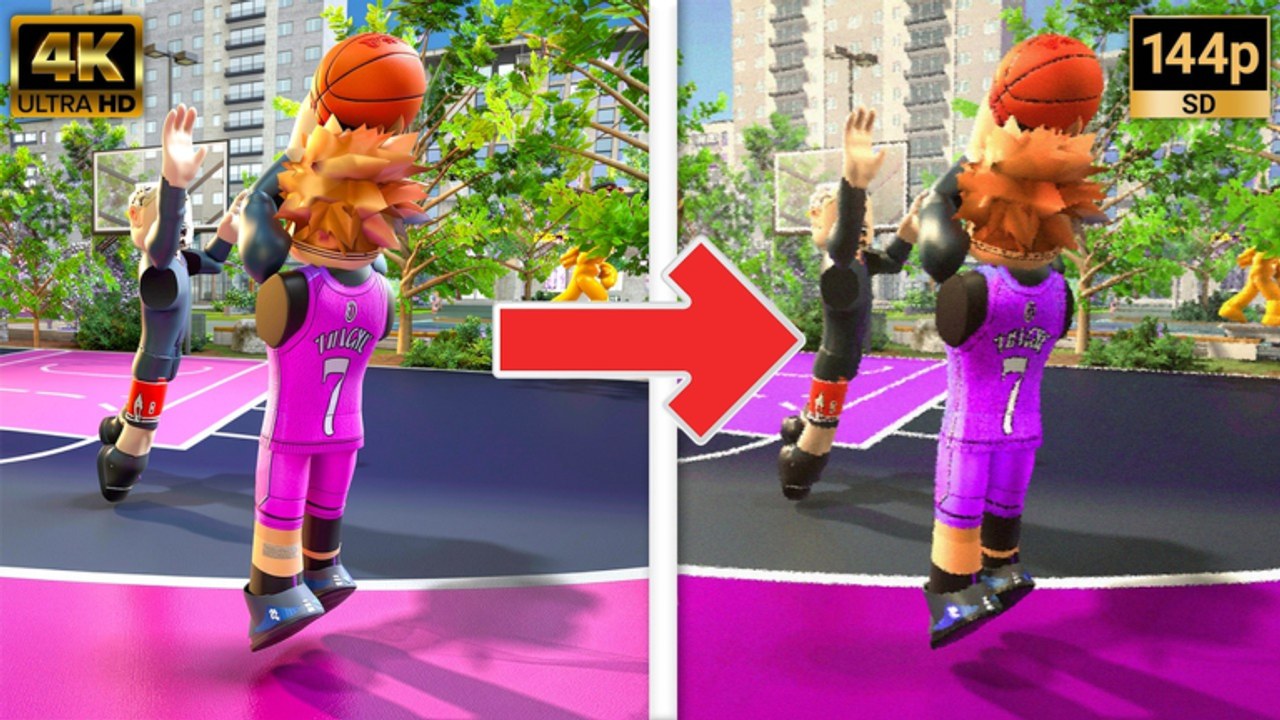
Camera settings rarely appear on beginner bind lists, yet they shape whether you see release timing, contest hands, and dribble footwork in Practical Basketball. During Stress Test 3 and other early-access windows on Roblox, small adjustments to angle, sensitivity, and graphics can turn brick-heavy sessions into stable scoring — without changing your build or inputs. This guide covers camera modes, sensitivity tuning, first-person experiments, troubleshooting keys like L, and how visuals interact with How to Shoot timing.
Pair this page with PC Controls for inputs and Getting Started for park flow. Mobile and console players should also read Mobile Controls and Console Controls because camera behavior differs by platform even when principles overlap.
Why camera matters in Practical’s Physics V2
Practical Basketball punishes shots you cannot read. Hold-release shooting on E (PC) depends on seeing the gather peak, defender contest height, and rim alignment. Dribble chains from How to Dribble require tracking both your player’s hips and the on-ball defender’s lead foot. A camera that swings wildly after every crossover hides the information your brain needs for timing.
Stress-test park lobbies move fast. You will not pause to fix camera mid-possession — set habits in gym first.
Camera modes: third person versus first person
Most players default to third-person Roblox camera with a moderate distance. Third person shows spacing, off-ball cutters, and help defenders — critical for How to Pass reads and team defense.
First-person experiments appear in community handcam clips — including settings and animation showcases — because they place the release point near screen center. Benefits and tradeoffs:
| Mode | Strengths | Weaknesses |
|---|---|---|
| Third person (default) | Floor vision, passing lanes, defense | Release cue smaller at distance |
| First person | Shot timing visibility, immersive contests | Tunnel vision on drives and lobs |
| Hybrid habits | Quick toggle for special reps | Inconsistent muscle memory if overused |
If you test first person, do it in shootaround for fifty stationary holds before park. Switching modes every possession destroys timing consistency.
Sensitivity and rotation speed
Roblox exposes mouse sensitivity (PC) and touch/camera sensitivity (mobile). Practical Basketball benefits from moderate sensitivity:
- Too high — you overshoot closeouts and lose the rim during gather
- Too low — you cannot track quick iso players off-ball
Starting point for PC players:
- Set Roblox mouse sensitivity near default
- Play ten defensive possessions focusing only on staying between ball and basket
- Raise sensitivity one notch if you consistently lose ball handlers on corners
- Lower one notch if your screen shakes during shot releases
Console players tune right-stick camera speed in Roblox settings; mobile players adjust drag sensitivity and optional gyro. Re-test after every stress-test patch — engine changes can alter how fast the camera recenters.
The L key and camera troubleshooting on PC
Community threads during stress tests occasionally mention L or similar keys tied to camera lock, recenter, or alternate view toggles depending on build version. Because Practical Basketball is still in early access, treat any L-key behavior as verify in gym rather than gospel:
- Enter shootaround with no defenders
- Rotate camera off-center, then test L (and nearby keys if rebinding occurred)
- Note whether the camera snaps behind the player or toggles a mode
- Confirm in Discord pins from Links for the active Stress Test 3 client
If L does nothing in your current build, use Roblox’s default camera reset (often middle mouse or the recenter UI) and focus on sensitivity instead of hunting deprecated toggles.
Graphics settings for timing readability
Graphics trade fidelity for clarity. Competitive stress-test players often lower settings that obscure the release window:
- Reduce motion blur or post effects if Roblox exposes them on your device
- Lower particle-heavy environments when courts crowd during events
- Prefer stable frame rate over max texture quality — frame drops mimic bad timing
- Disable unnecessary screen shake from third-party Roblox overlays
You are not chasing screenshot beauty; you are chasing consistent frames during hold-release on E. A dropped frame at release reads like a late shot even when your input was correct.
Camera habits for shooting
From How to Shoot:
- Set angle before gather — rotate during catch, not during hold E
- Square visually to rim — third person still requires you to know basket location
- Track contest hand height — zoom that hides the hand causes false confidence
- Reset after dead balls — sideways camera persists if you forget to recenter
Practice ten catch-and-shoot reps where the only variable is camera prep, not release speed.
Camera habits for dribbling
From How to Dribble:
- Keep defender hips in lower third of screen during iso
- Avoid zooming in so tight that you lose help defenders — double teams come from peripherals
- On mobile, do not swipe camera during shoot button holds
- On console, use overlay prompts without fighting right-stick flicks mid-move
Animation packages from Animations & Sigs change how high the ball sits during gathers — recenter camera when you swap signatures.
Platform-specific notes
PC — mouse offers finest control; lock sensitivity for a full stress-test window before changing.
Console — right stick competes with dribble sticks; lower camera sensitivity if you clip inputs.
Mobile — touch drag causes accidental rotations; practice thumb zones separated from shoot buttons per Mobile Controls.
Recommended camera setup session (15 minutes)
- Third-person baseline — ten open shots, note make feel
- Adjust sensitivity one step — ten more shots
- Five defensive closeouts — can you stay in front without losing rim?
- Optional first-person — ten shots, compare release visibility
- One park game applying no mid-possession camera changes
Watch the embedded handcam clip on this page for how experienced players frame settings and animation menus — use it for context, then tune to your device.
When patches change camera behavior
Stress Test 3 and future windows may add official camera options inside Practical Basketball settings menus. After each opening:
- Open in-game settings before park queue
- Cross-check Stress Test Notes
- Re-run the fifteen-minute setup if gather animations changed
Return to the Guides Hub for mechanic pages once your view stays stable possession to possession.
Frequently Asked Questions
Quick answers players ask before every park session.
What camera mode is best for shooting in Practical Basketball?
Most players use third person for floor vision. First person can help read release timing in shootaround but hurts passing and defense awareness. Pick one mode per stress-test window and practice consistently.
Does camera sensitivity affect hold E shooting?
Indirectly. High sensitivity causes camera drift during gather, which feels like bad timing. Moderate sensitivity and preset your angle before holding shoot.
What does the L key do for camera on PC?
Behavior varies by stress-test build — some players report recenter or lock toggles. Verify in gym during Stress Test 3 and confirm with Discord pins rather than assuming a universal bind.
Should I lower graphics for better timing?
Stable frame rate matters more than max visuals. Reduce effects that blur motion or drop frames during release windows, especially on mobile and older PCs.
Do animation signatures change camera feel?
Yes. Different jumpshot and dribble packages alter ball height and body motion. Recenter camera and re-test timing in gym after swapping signatures from the animations guide.